
ACE pro 1 & 2 Cable Guide
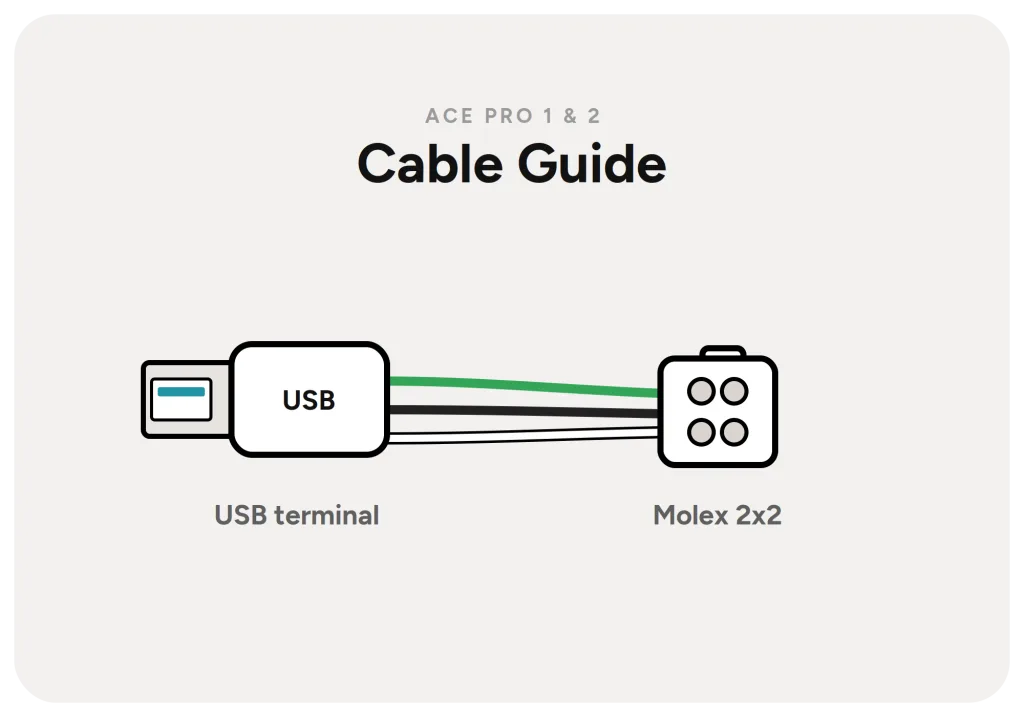
Want to support the project? You can grab the ready-made cable right here. The parts are also available from various online retailers if you prefer to build it yourself. New Ready-made cable: plug it in, done. No screwdriver needed. READY-MADE CABLE Universal ACE USB Cable A finished, professionally manufactured and shielded cable with USB terminal […]
Download & Installation

Installing the mUlt1ACE firmware is quick and needs no tools or terminal. Just grab one of the firmware files above, picking the build that matches the PAXX firmware you want to use as your base, and follow the steps below. 1Save the firmware to a USB stick Copy the downloaded .bin file onto a USB […]
Bowden Setup

The Bowden setup depends on the mode configured in mUlt1ACE. ACE per HEAD mode In the new ACE per HEAD mode, connect the 4 outputs of the ACE to a 4-in-1 combiner and plug it into the rear input of the assigned head, as shown in the photo. The remaining heads stay connected to the […]
Configuration

Once mUlt1ACE is installed, open it in your web browser at <printer-ip>/multiace. By default the Dashboard is active, and you can also choose a different language here. To open the configuration, click Config. Command & safety options Confirm commands Ask before load/unload in the web UI A confirmation dialog before any action that moves filament […]
Reliability
The original task of mUlt1ACE, keeping filaments dry and ready and preloading them, runs here without problems apart from minor issues. Since I warn about the swaps everywhere, but some people still think they are getting a free AMS, here is a detailed explanation. Why color swaps are not fully reliable By default, the color […]
Ace per Head Operation

In ACE per Head mode the dashboard shows the 4 toolheads at the bottom, and above them the ACE units connected to each toolhead as cards. Controls Display Display in the top row opens the familiar display mirror when running a PAxx firmware. ACE cards Heater The heater icon shows the heater controls inside the […]
Multi Mode Operation

In ACE Multi Mode the dashboard shows the 4 toolheads at the bottom, and all connected ACE units as cards. Controls Display Display in the top row opens the familiar display mirror when running a PAxx firmware. ACE cards Heater The heater icon shows the heater controls inside the card. Here you can change temperature […]
Temp- and Tip Tuning

On unload, the melted end has to be pulled into a slim, clean tip. A thick or stringy tip blocks the next load. The U1 uses one fixed choreography for all materials; mUlt1ACE makes the pull moves configurable per material. Everything else stays stock, the U1 forms the tip by pulling alone, no cutter. Full […]
Multicolor printing
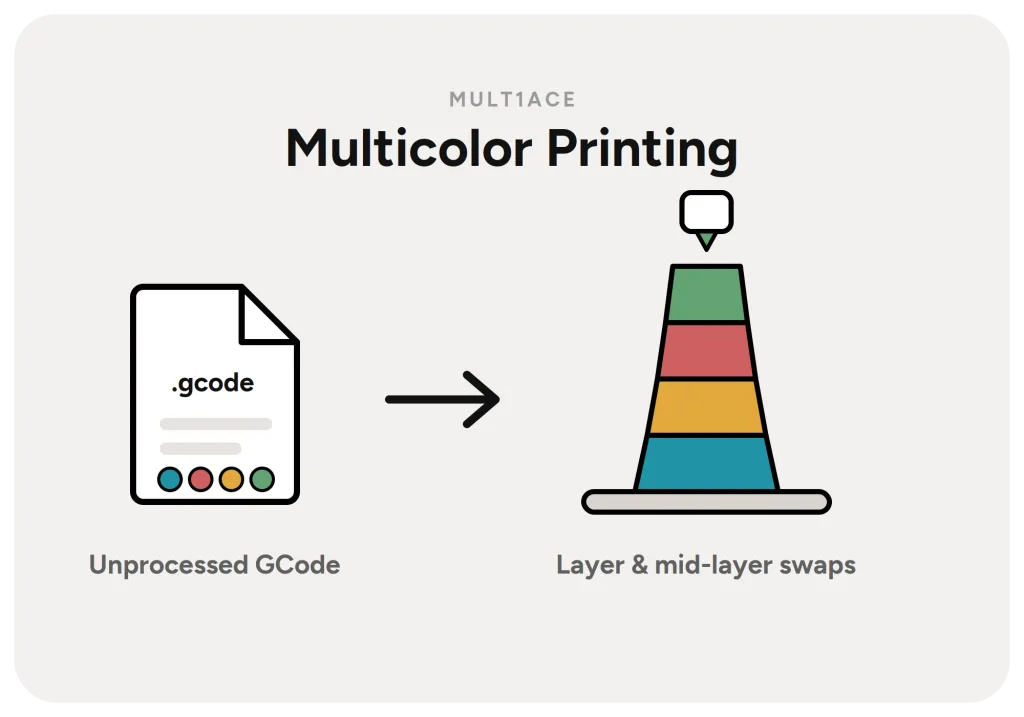
To print with automatically changing colors, proceed as follows. 1Slice and export the GCode Slice your model in Snapmaker Orca and, instead of printing, export the GCode. 2Import it in the Web UI In the Web UI, import the file with the G-code button in the top right corner. 3Web-Preflight opens The Web-Preflight opens. It […]
Park position swap

To use the new Parked Head Background Swap mode, two hardware modifications are required. Still experimental. Even though this mode is now part of the release, it is still considered experimental. Even with the new hardware, contamination from the park position can end up in the print. New waste bin A new waste bin is […]